
Purchase orders
Purchase orders live under Purchasing → Purchase Orders and need the Purchasing or Admin role.
Statuses
Section titled “Statuses”| Status | Meaning |
|---|---|
| Draft | Being built. Lines can be added and changed. |
| Issued | Sent or ready to send. Lines are locked; receiving is open. |
| Complete | Every line fully received or closed short. |
| Voided | Cancelled. |
The list filters to All open by default, with filters for status and supplier.
Create a purchase order
Section titled “Create a purchase order”- New PO: pick the supplier and add internal notes. The order receives into the location this device is operating from.
- From the Clipboard, which pre-fills the lines.
- Duplicate an old order, or Merge two drafts for the same supplier.
Add lines
Section titled “Add lines”Add line searches your Shopify products or the supplier catalog, or scan a barcode. A catalog product that isn’t in Shopify yet is imported as it’s added. Set the quantity and Unit cost (what your shop pays). Show inventory shows what you have on hand and what the supplier’s warehouses have.
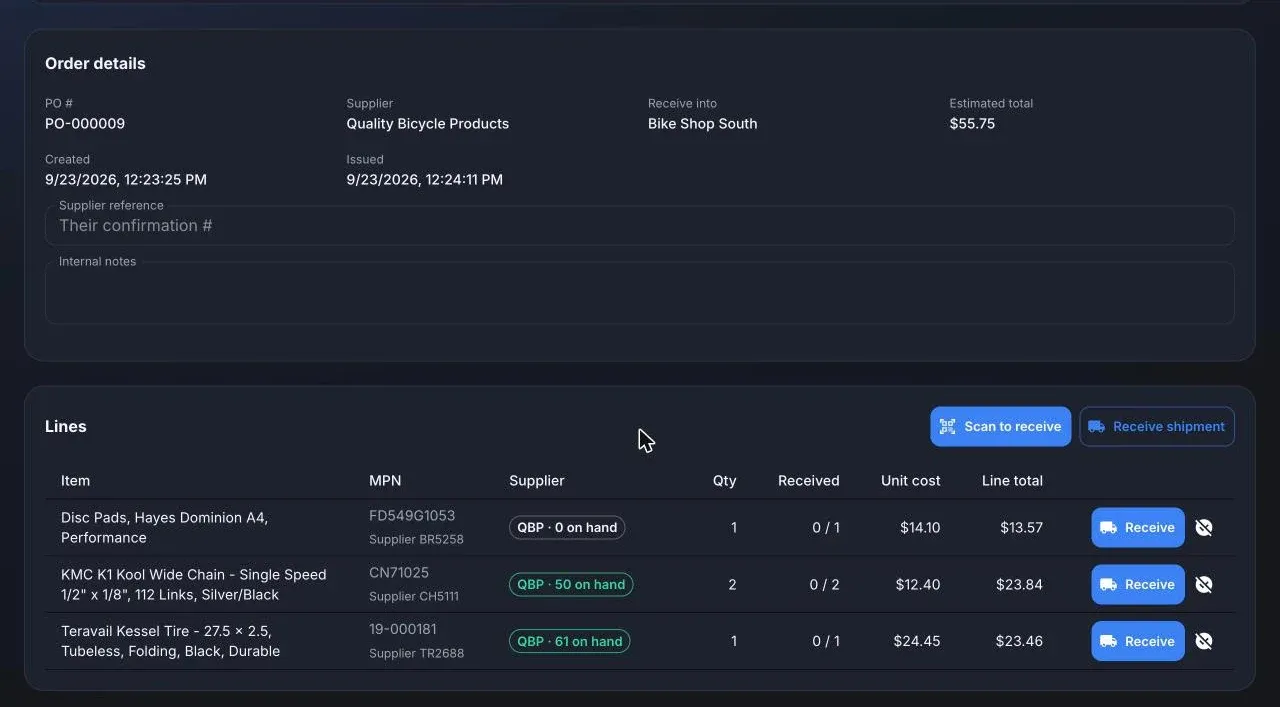
Issue locks the lines and, for a connected supplier, gets the order ready to send. ShopTech first flags duplicate products and lines the supplier doesn’t appear to sell, with an offer to merge or move them. You can Issue anyway.
An issued order with no receipts can be taken back to draft with Unissue, or cancelled with Void.
Order numbers follow the format in Settings → General → Purchase Order Numbering. The default is PO-000001.
Send it to the supplier
Section titled “Send it to the supplier”What happens next depends on the supplier. See Suppliers for what each one supports.

QBP and JBI (electronic ordering). The issued order shows a Supplier order card. Send to {supplier} checks the order for anything that would block it, then submits it. The card tracks the supplier’s answer: Awaiting confirmation, Accepted, Held for review, Rejected, Shipped, and so on. QBP confirms automatically. JBI confirms by email; enter what they said with Record their reply. If the order is held for review, finish it on the supplier’s site and choose Mark as placed. Order updates also arrive as notifications.
BTI. The order shows Export cart CSV. Upload that file on BTI’s Add Multiple Items to your Cart page and complete the order there.
Custom suppliers. Print → Purchase order gives a full-page PDF to email or fax. Record their order number in Supplier reference and any tracking numbers on the Shipments tab.
Receive it
Section titled “Receive it”See Receiving.
Finish or cancel
Section titled “Finish or cancel”- Close short a line, or the whole order, when the supplier won’t send the rest. Needs at least one receipt.
- Void a draft, or an issued order with no receipts.
- Delete draft removes a draft for good.