
Devices and PIN lock
Every iPad, phone, or computer that runs ShopTech is a device. Devices are paired to your shop once, then unlocked with a staff PIN each time they’re used.
Add a device
Section titled “Add a device”Pairing needs an admin on a device that’s already set up.
-
On the existing device, go to Settings → Devices and choose Add Device. A QR code and a six-letter code appear. The code is good for five minutes and one use.
-
On the new device, open go.shoptech.app. Scan the QR with the camera, or choose Pair it with a code on the connect screen.
-
Name the device (for example “Front Counter iPad”), enter the code, and choose Pair device.
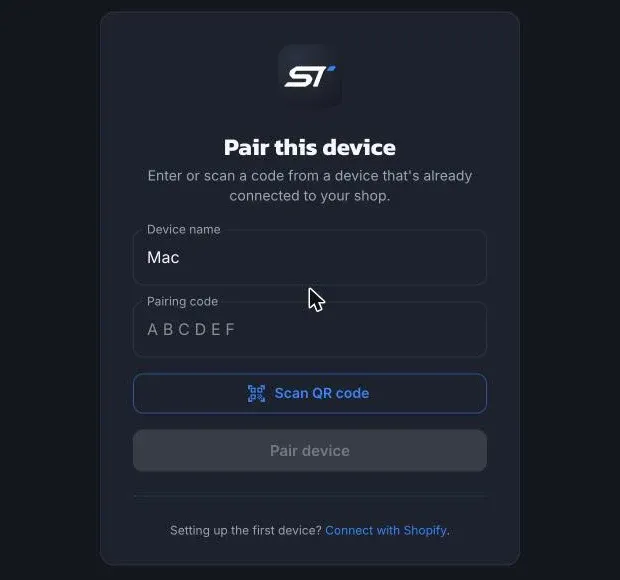
-
Unlock with a PIN and, for multi-location shops, pick the location it’s operating from.
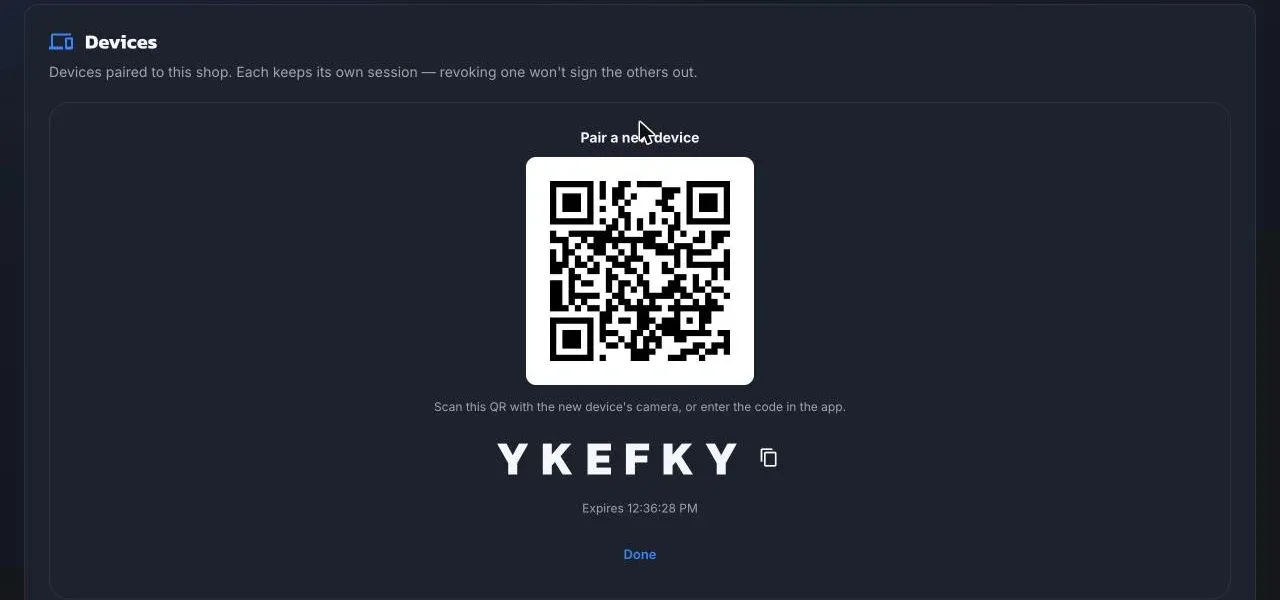
Manage devices
Section titled “Manage devices”The Devices tab lists every paired device with who last used it and when. Rename it, or Remove it to sign it out; it will need pairing again. Removing one device doesn’t affect the others.
Disconnect this device on the lock screen does the same from the device itself, and clears its saved location and cached data.
PIN lock
Section titled “PIN lock”Every staff member has their own PIN, set by an admin under Staff, and any PIN unlocks any device.
Settings → General → Auto-Lock applies to every device:
- Lock after inactivity: from 1 minute to 1 hour, or never. The default is 15 minutes. A “Locking soon” countdown gives you a chance to choose I’m still here.
- Lock when the app is closed or the screen turns off: on by default. Taking a photo or printing doesn’t count as leaving.
The lock icon on the dashboard locks the device immediately. Locking discards anything unsaved, so finish the line you’re on first.