
Install ShopTech
Before you install
Section titled “Before you install”- A Shopify store. ShopTech reads the products, customers, inventory, and locations already in it.
- Shopify POS is recommended, not required. It’s how work orders and special orders are paid for, how deposits are taken, and where the ShopTech tiles live. A location without POS can still run work orders, purchasing, and inventory in the app, but takes payment some other way.
- A device you already have: iPad, iPhone, Android tablet, or a desktop browser.
Install the app
Section titled “Install the app”- Open the ShopTech listing in the Shopify App Store and choose Install.
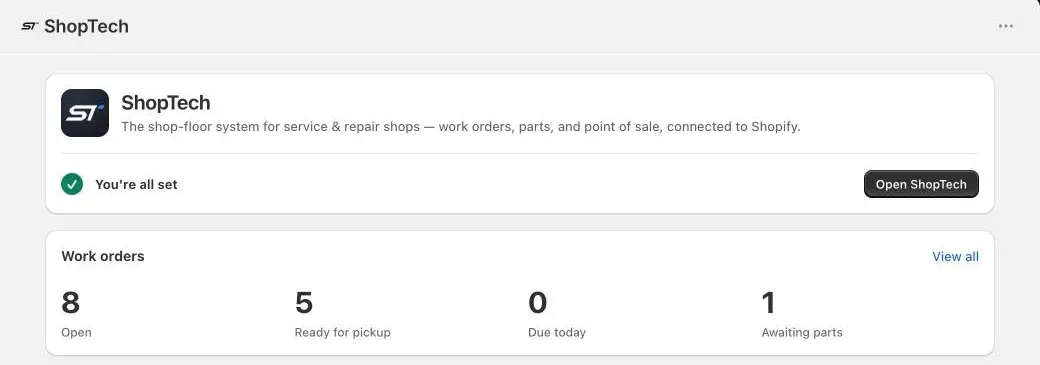
- Shopify opens ShopTech inside your admin. On first load, ShopTech creates your account, syncs your locations, turns on your primary location, and starts building your supplier catalog in the background.
- On the Home page, work through Finish setting up:
- App connected is already ticked.
- Set your labor & service product type. Choose Set up, then pick the Shopify product type you use for labor and services. If you don’t have one yet, you can create it during first-run setup instead.
- Finish setup in ShopTech. Choose Open ShopTech to continue in the app.
Trial and plan
Section titled “Trial and plan”- Every install starts a 14-day free trial with every feature included. No card or approval is needed to start.
- The plan is $299 per month for the first shop, plus $150 per month for each additional shop you enable. A “shop” is a Shopify location.
- Subscribe, change, or cancel from Shops in the Shopify admin app, using Manage plan on Shopify. Billing runs through Shopify.
See Plan and shops for how locations are enabled and billed.
© 2026 Zack Dot Solutions LLC. All rights reserved.