
Create products and Quick Add
Two ways to get a product into Shopify, both needing the Purchasing or Admin role.
Create product
Section titled “Create product”Inventory → Products → New product is the full form: use it when you have images, a description, shipping details, or opening stock to enter.
- Scan or enter the barcode and SKU. ShopTech checks your store, and shows Already in your store with a link if it’s a duplicate. It also checks the supplier catalog; tap a match to fill in the whole form and link the product for cost and stock.
- Fill in the Title and Price (both required), and anything else you want: description, up to ten images, vendor, type, status, tags, and tax.
- Initial inventory sets the on-hand quantity at each active location. Leave it blank to start at zero.
- Choose Create product.
The Product created dialog offers to print labels (defaulting to the quantity entered for your location), create another, or open the product.
Quick Add
Section titled “Quick Add”Inventory → Quick Add is for getting stock that’s already on the shelves into Shopify fast, one scan each, with a label printed as you go. It never sets quantities; run a stocktake when you’re done.
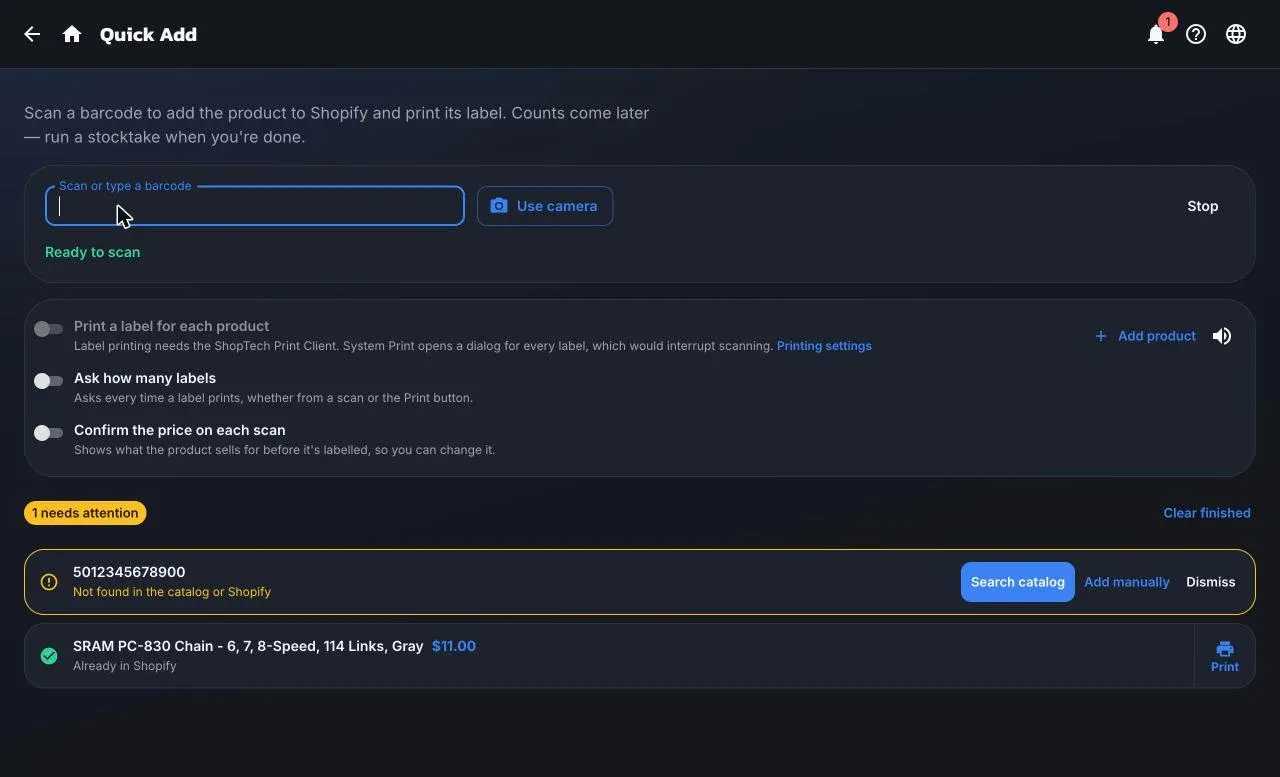
- Choose Start scanning. Use a handheld scanner, type the barcode, or Use camera.
- Keep scanning. Each scan becomes a row and is looked up while you move to the next one.
What each row can say:
- Added to Shopify: found in the supplier catalog and created at its MSRP or MAP.
- Already in Shopify: matched an existing product. Its label prints.
- Not found in the catalog or Shopify: choose Search catalog or Add manually (barcode, SKU, name, price).
- Needs a price before it can be added: the catalog has no retail price. Set a price.
- Added, but the label didn’t print: the product exists, so don’t rescan; reprint from the row.
Rows that need attention stay pinned at the top until you dismiss them. Add product handles items with no barcode.
Options at the top of the page, saved per device:
- Print a label for each product (on). Needs the print client; the system print dialog would interrupt every scan.
- Ask how many labels (off).
- Confirm the price on each scan (off) shows the current price with Keep or Update price.
Which one to use
Section titled “Which one to use”| Create product | Quick Add | |
|---|---|---|
| Best for | One item with full details | A shelf or a delivery, fast |
| Sets stock | Yes, per location | No |
| Images and description | Yes | From the catalog only |
| Labels | On request | Automatically |
© 2026 Zack Dot Solutions LLC. All rights reserved.