
Overview
ShopTech prints item tags and drop-off receipts for work orders, hold tags for special orders, shelf labels for products, and full-page purchase orders. Each document has a fixed size; you only choose which printer it goes to.
Two ways to print
Section titled “Two ways to print”Set the method in Settings → Printing. It’s saved per device, so set it on each iPad or computer.
| System Print | ShopTech Print Client | |
|---|---|---|
| How it works | Your device’s own print dialog opens for every print. | Prints silently through a Mac or PC on your network running the print client. |
| Works with | Any printer the device can see. On iPad and iPhone, an AirPrint printer. | Any printer attached to that computer, plus Epson network receipt printers. |
| Setup | None. | Install and pair the client once. See Print client. |
| Automatic printing | No. | Yes: labels as you receive or Quick Add, tag and receipt on new work orders. |
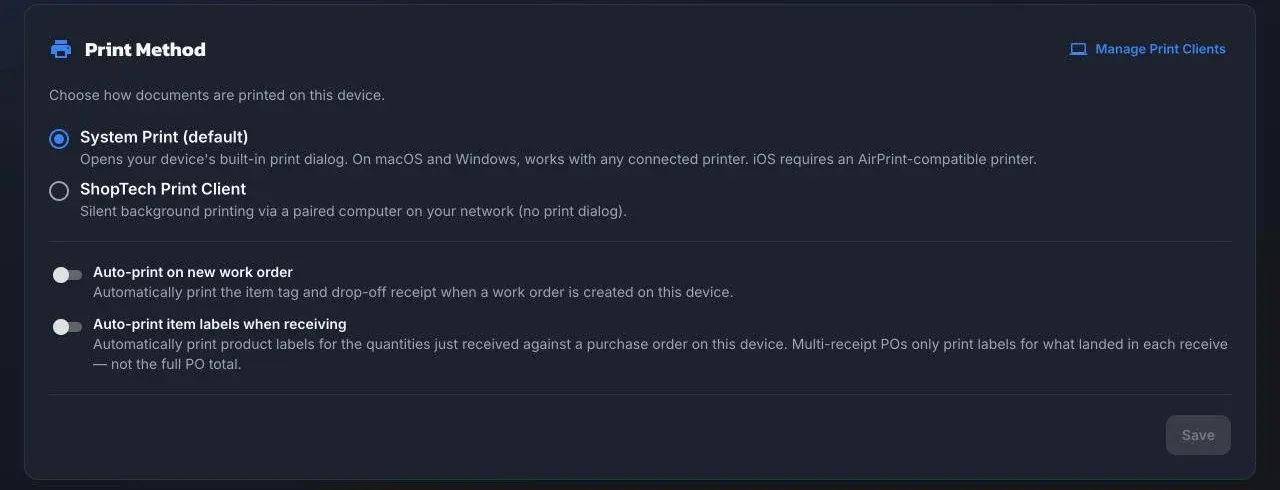
System Print is the default and is fine for a desktop with a receipt printer. For a counter running on iPads, or anywhere you print labels in volume, use the print client.
The Shopify POS tiles print on their own path, to the receipt printer paired with the register. See Print from Shopify POS.
The documents
Section titled “The documents”| Document | Size | What’s on it | Printed from |
|---|---|---|---|
| Item tag | 80 mm receipt | Work order number, dates, customer and phone, the item, the lines without prices, notes. Goes on the bike. | Work order created screen; work order Print menu |
| Drop-off receipt | 80 mm receipt | Shop details, customer, lines with prices, estimated total and tax, notes, ready date. Goes with the customer. | Same |
| Hold tag | 80 mm receipt | Customer and phone, item and quantity, arrival date, PO number, work order, deposit or paid in full. Goes on the box. | Special order Print hold tag; the arrival prompt |
| Product label | 2 × 1 inch label | Product name, price, barcode, SKU, shop name. | Product Print label; Quick Add; receiving Print tags; stocktake Print labels |
| Customer product detail | 80 mm receipt | A catalog product’s name, part number, MSRP, and description, with no cost. | Supplier catalog Print |
| Purchase order | Letter | The full order, as a PDF preview to print or download. | Purchase order Print |
There is no pickup receipt; the Shopify POS receipt is the record of sale.
Automatic printing
Section titled “Automatic printing”Each of these is a per-device switch in Settings → Printing or on the page itself, and all need the print client:
- Auto-print on new work order: item tag and drop-off receipt when a work order is created on this device.
- Auto-print item labels when receiving: a label for each unit received against a purchase order.
- Print a label for each product on Quick Add.
Hold tags never print automatically.
Print from Shopify POS
Section titled “Print from Shopify POS”The New Work Order tile offers Print item tag and Print drop-off receipt on the register’s paired receipt printer. To print them automatically for every work order created at the register, turn on Print an item tag and Print a drop-off receipt per location in ShopTech → Settings → Printing in Shopify POS in Shopify admin. This needs Shopify POS 11.11 or later.