Finish and check out
Finish the job
Section titled “Finish the job”On the work order, choose Finish Work Order. ShopTech won’t finish a job that still has an unresolved placeholder line.
The job moves to Completed and ShopTech asks how the customer should hear about it:
- Text the customer sends “Your item is ready for pickup” with a link to their repair tracker. Only offered if they’ve agreed to texts.
- Log how you reached them records a call: Spoke with customer or Left voice message.
- Not now.
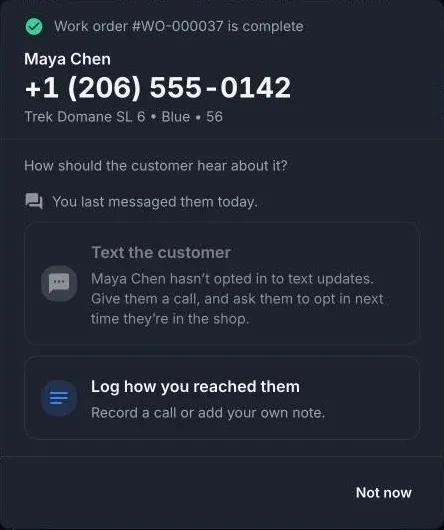
Nothing is sent automatically. If you skip this, you can text or log contact later from Complete Work Orders.
Take payment in Shopify POS
Section titled “Take payment in Shopify POS”Payment always happens in Shopify POS, so tax, receipts, and reporting stay in Shopify.
- On the register, open the Work Orders tile and find the job.
- Choose Check Out. ShopTech puts the customer on the cart and adds every unpaid line at the work order’s price. Labor and custom lines go in as custom sales; warranty lines are discounted to zero.
- Finish the sale in POS as normal.
When the sale is paid, ShopTech marks the lines paid. If the job was already Completed, it is marked picked up too, so there’s nothing left to do in the app.
If the customer paid earlier, before the work was done, the job stays on the list until you Mark as Picked Up at hand-over.
Pickup without a sale
Section titled “Pickup without a sale”Mark as Picked Up on an unpaid job asks you to confirm. Use it only for warranty, comp, or account-billed work.
Follow up on uncollected jobs
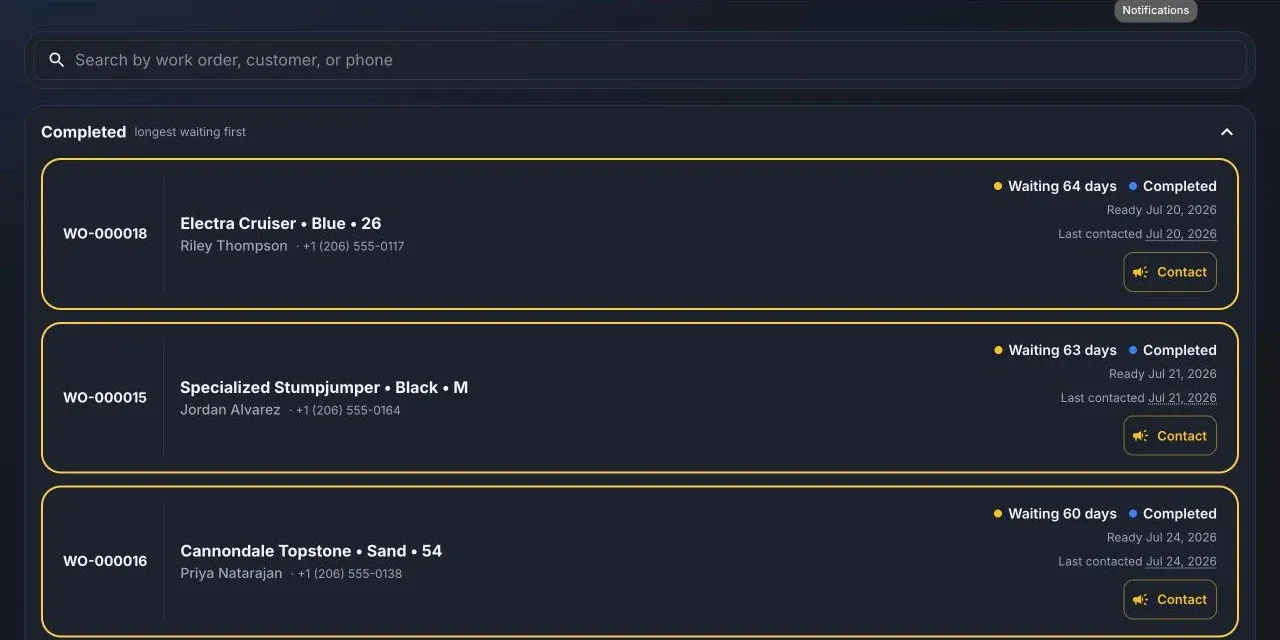
Section titled “Follow up on uncollected jobs”Complete Work Orders lists finished jobs longest-waiting first, with how many days each has waited and when the customer was last contacted. The Contact button turns amber after seven days. It offers Send a pickup reminder, which re-sends the ready text, or lets you log a call.