
Staff and roles
Staff are added inside ShopTech; they’re not imported from Shopify. Each person has a name, a role, and their own PIN that works on every device in the shop. Managing staff needs the Admin role.
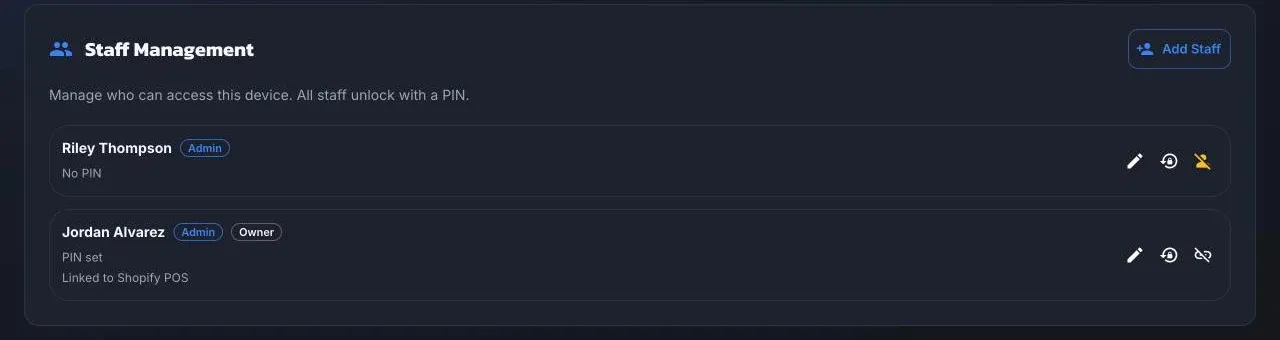
Go to Settings → Staff.
| Role | Can |
|---|---|
| Staff | Work orders and the counter: customers, special orders, web orders, the clipboard, inventory browsing, stocktakes, printing. No cost, no purchasing, no product editing, settings are view-only. |
| Purchasing | Everything Staff can, plus purchase orders, suppliers, creating and editing products, importing from the catalog, and seeing dealer cost. |
| Admin | Everything, including staff, devices, print clients, shop settings, and deleting customers. |
The person who installed ShopTech is the owner, always an admin, and can’t be deactivated.
Add someone
Section titled “Add someone”- Choose Add Staff.
- Enter first name, last name, and role.
- Choose Set / Reset PIN on their row and enter a 4 to 6 digit PIN. PINs are unique within the shop.
They can now unlock any of the shop’s devices with that PIN.
Change or remove
Section titled “Change or remove”- Edit changes the name or role.
- Set / Reset PIN replaces a forgotten PIN. There’s no self-service reset, so an admin does this.
- Deactivate removes access and clears their PIN. The record stays for history; Reactivate brings it back with a new PIN.
Shopify POS
Section titled “Shopify POS”The first time someone taps a ShopTech tile on a register, POS asks for their ShopTech PIN and links that POS staff member to their ShopTech record. The row shows Linked to Shopify POS. Use Unlink Shopify POS user if the wrong person got linked or someone changes registers.
© 2026 Zack Dot Solutions LLC. All rights reserved.