
Messaging and the customer portal
Every work order has a message thread with the customer. Staff write in the Messages tab; the customer reads and replies in their repair tracker, a web page they open from a text. No app, no password.
Send a message
Section titled “Send a message”- Open the work order and go to Messages.
- Type in Send an update to the customer and choose Send. Add Media attaches up to six photos or videos, taken now, uploaded, or chosen from the job’s Media tab.
About 15 seconds later the customer gets a text saying there’s a new message, with a link. If they’ve already opened the tracker and read it, no text is sent.
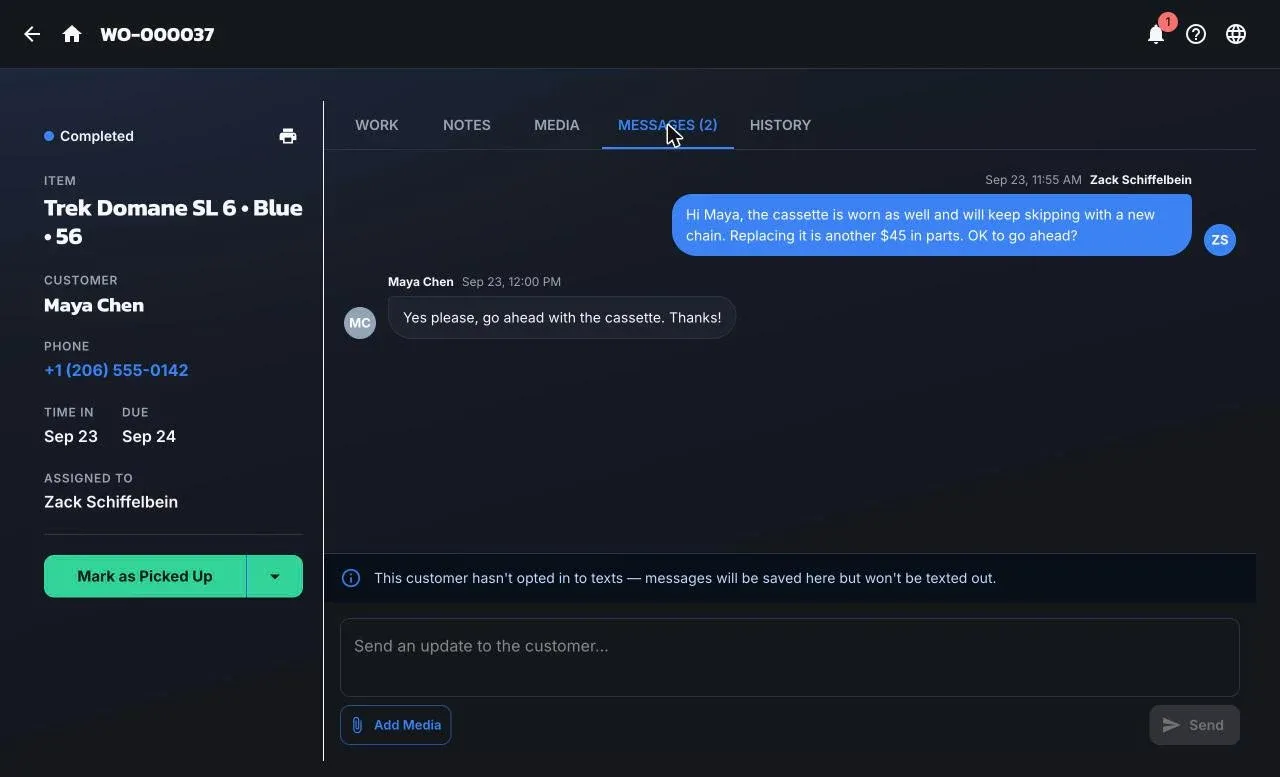
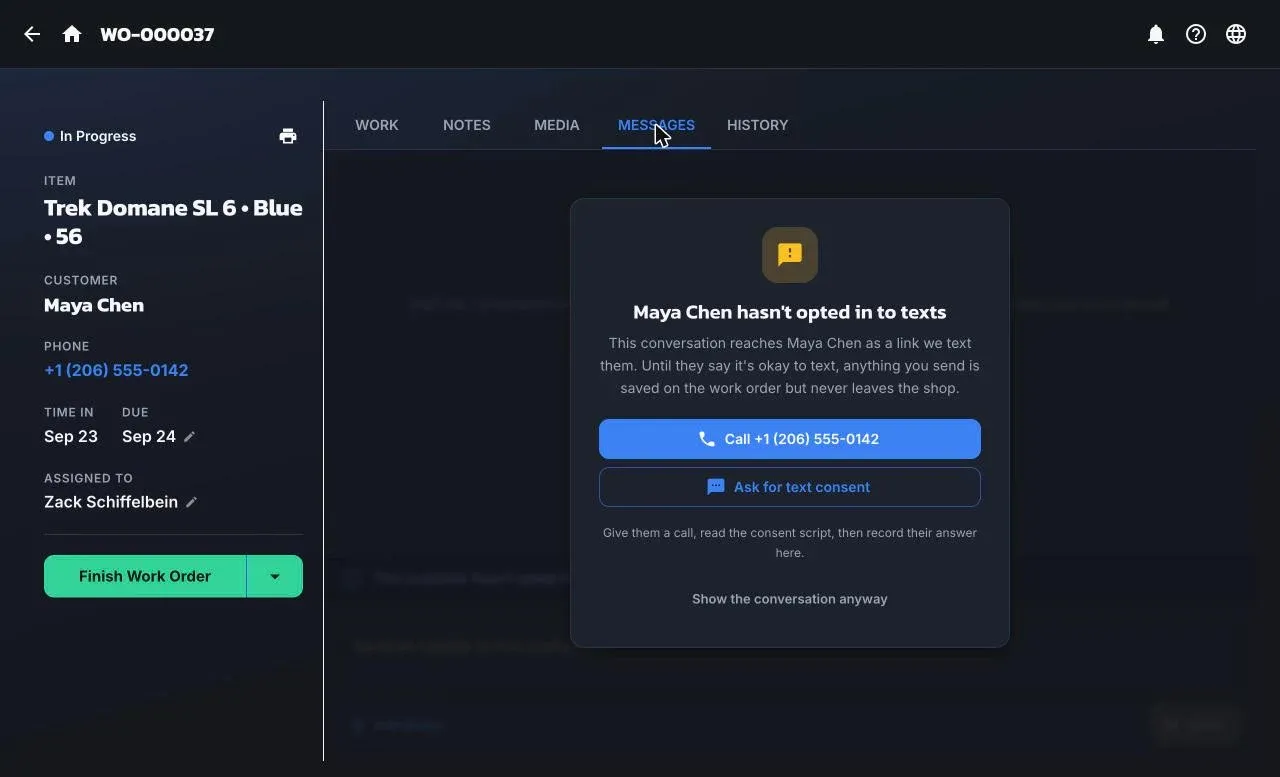
If the customer can’t be texted (no phone, no consent, replied STOP, or a landline), ShopTech says why and offers to call them, ask for consent, or open their record. You can still write in the thread; it just won’t be texted.
A message the carrier couldn’t deliver is marked Not delivered — call the customer.
Replies
Section titled “Replies”Customers reply in the tracker, not by texting back. Replies typed as a text message are ignored (only STOP, START, and HELP are read). Their reply shows up live in the Messages tab and a Customer message alert goes to the assigned tech, or to whoever last messaged them, or to everyone if no one has.
Messaging stays open until the job is picked up or voided.
What the customer sees
Section titled “What the customer sees”The tracker shows:
- The shop name and a Call button.
- The work order number and the item.
- The status in plain words: Just dropped off, In progress, Waiting on products, Waiting on your approval, or Ready for pickup.
- The drop-off and estimated ready dates.
- The conversation, including any photos and videos you’ve sent.
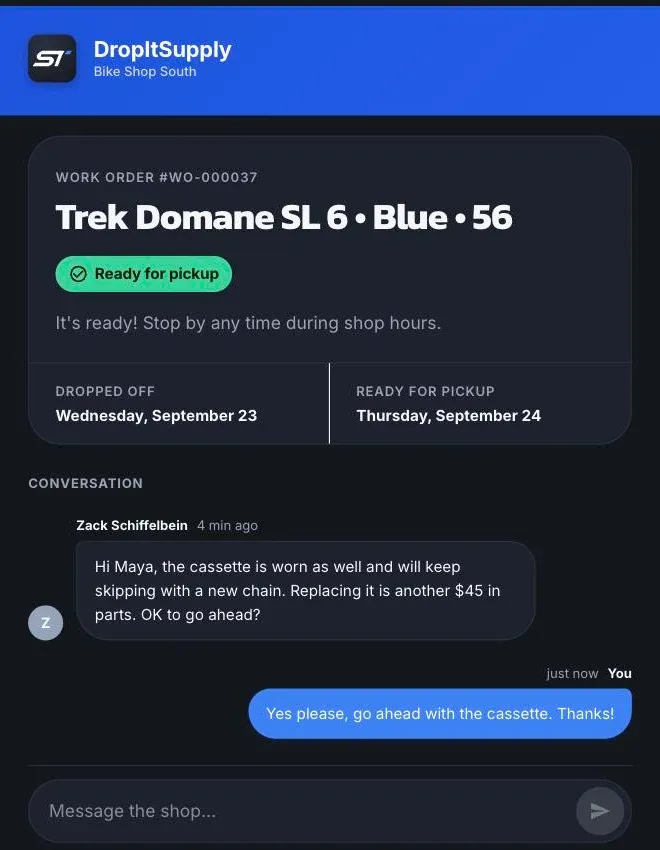
The customer can only type a reply. There are no prices or line items on the tracker, and no approve button. To get approval for extra work, describe it in a message and set the job to Awaiting Approval; the customer’s reply is their answer.
The link works until the job is picked up or voided, then shows a “wrapped up” page with the shop’s number.
Notifications for staff
Section titled “Notifications for staff”Alerts appear in the bell at the top of the app and on the dashboard. Besides customer messages, you’ll see new web orders, failed texts, supplier order updates, and catalog updates. Shared alerts like a new web order can be Claimed so only one person handles them. The bell has a sound toggle per device.