
Customers
Customers are your Shopify customers. ShopTech reads and writes them directly, so a customer added at the counter shows up in Shopify admin right away, and vice versa. There is no second customer list to keep in sync.
Open Sales → Customers to search and manage them.
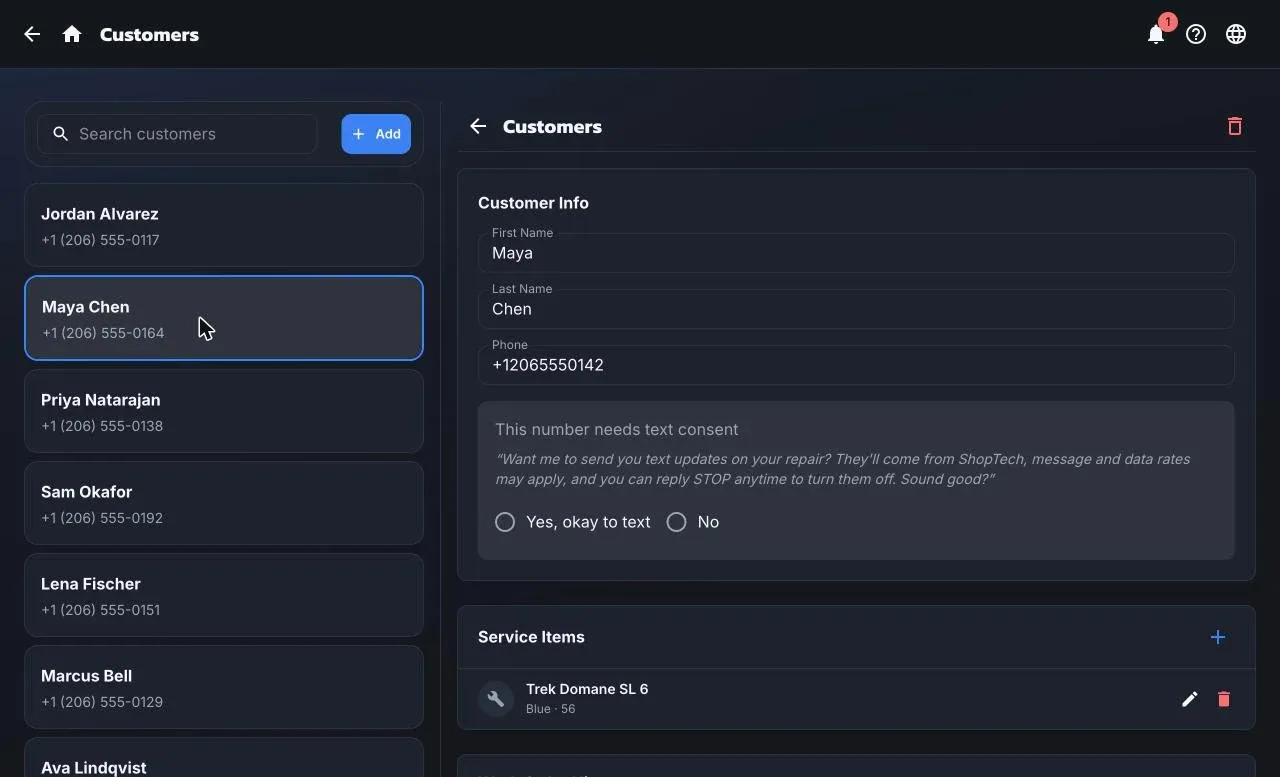
Find or add a customer
Section titled “Find or add a customer”Search by name, phone, or email; the search runs on Shopify. Each result shows the name and phone number.
Add creates a new customer with first name, last name, and phone. All three are required and the phone must be a US number. You’re asked for text consent at the same time, so the customer can get updates from their first visit.
The customer record
Section titled “The customer record”- Customer Info: name and phone, editable. The texting status shows below the phone number: opted in, needs consent, replied STOP, or landline.
- Service Items: the customer’s bikes or other items, each with a description, color, and size. Add one here or during a work order; they’re offered next time the customer comes in.
- Work Order History: every work order for this customer at your location, with status and dates. Tap one to open it.
Deleting a customer
Section titled “Deleting a customer”Admins can delete a customer from their record. ShopTech refuses while the customer still has work orders, special orders, or a deposit on account, and Shopify refuses if they have orders. Deleting removes the customer from Shopify along with their service items.