
Overview
A work order is one service job: a customer, the item they dropped off, a ready date, and the labor and parts that go into it. It is created at the counter, worked at the bench, finished, and then paid for and handed over in Shopify POS.
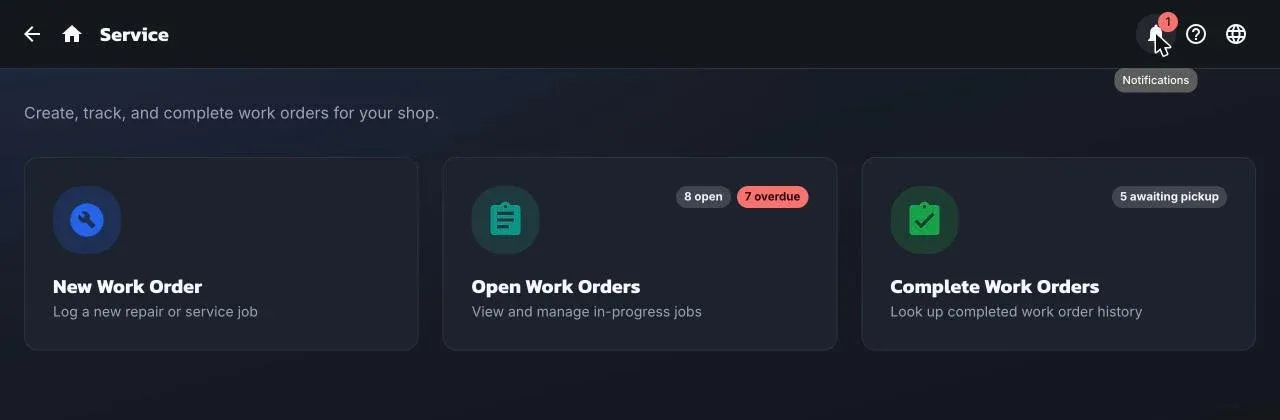
Everything about work orders lives under Service on the dashboard:
- New Work Order starts a job.
- Open Work Orders is the week view of what’s in the shop, with counts of open and overdue jobs.
- Complete Work Orders lists finished jobs waiting for pickup, picked up, and voided.
Statuses
Section titled “Statuses”| Status | Meaning |
|---|---|
| Open | Checked in, not started. |
| In Progress | A staff member has started it and is assigned to it. |
| Awaiting Products | Waiting on a part. Set by hand, or offered automatically when a line is a special order. |
| Awaiting Approval | Waiting on the customer to answer a question. |
| Completed | The work is done. The job waits here until it is picked up. |
| Voided | Cancelled. Can be restored. |
Picked up is not a status of its own. A completed job is marked picked up when it is paid in Shopify POS, or by hand with Mark as Picked Up.
A job, start to finish
Section titled “A job, start to finish”- Create the work order: customer, item, ready date, then labor and parts. Print the item tag and drop-off receipt.
- Work the job: start it, add or change lines, keep notes and photos, message the customer, and mark it waiting if you’re stuck on a part or an answer.
- Finish and check out: finish the job, tell the customer it’s ready, and take payment from the Work Orders tile in Shopify POS.
What the customer sees
Section titled “What the customer sees”If the customer agrees to texts, they get a link to their repair tracker. It shows the status, the dates, and a message thread with the shop. See Messaging and the customer portal.
© 2026 Zack Dot Solutions LLC. All rights reserved.