
Create a special order
From the app
Section titled “From the app”- Go to Sales → Special Orders and choose New special order.
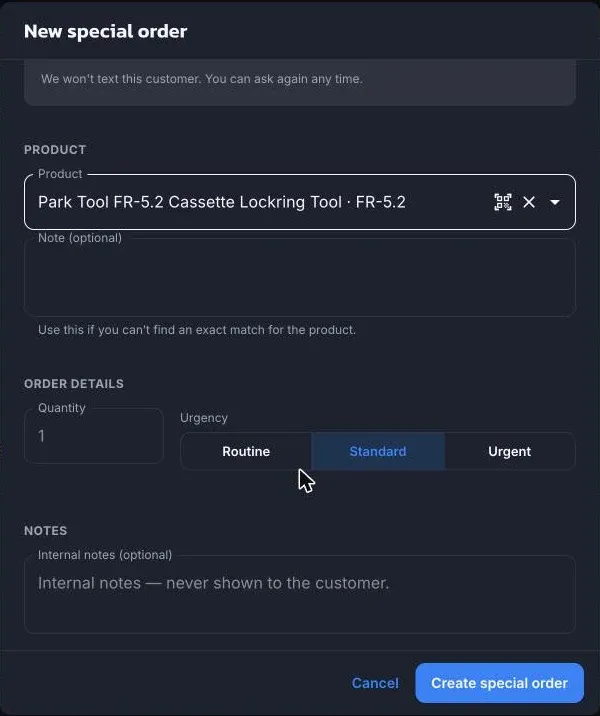
- Customer: search by name or phone, or add a new one. ShopTech shows whether they can be texted and offers the consent script if not.
- Product: search your Shopify products by name, SKU, or barcode, or scan one. If you can’t find an exact match, leave the product blank and describe it in the Note; the buyer will match it to a product later.
- Order details: quantity and urgency (Routine, Standard, or Urgent). Urgent orders sort to the top of the Clipboard.
- Notes are internal and never shown to the customer.
- Choose Create special order.
From the register
Section titled “From the register”The New Special Order tile in Shopify POS walks through the same steps: customer, product (or Or describe it), quantity, urgency, and notes for the buyer. The order lands on the Clipboard.
From the supplier catalog
Section titled “From the supplier catalog”A catalog product that has been imported into Shopify has a Special order button on its detail. It opens the same dialog with the product filled in. See Import products.
From a work order
Section titled “From a work order”When adding a line to a work order, tick Special Order. ShopTech ticks it for you when the product is out of stock at your location. The special order is attached to the job and the job can be set to Awaiting Products until it arrives. See Work on a job.
Taking a deposit
Section titled “Taking a deposit”Deposits are taken at the register so the money goes through Shopify. Open the Special Orders tile in Shopify POS, pick the order, and choose Take a deposit. Use the 10, 25, or 50 percent shortcuts or type an amount, then Add deposit to cart and complete the sale. The deposit is held as store credit on the customer and used at pickup.
Pay in full now sells the part before it arrives. The order is marked paid and nothing is owed at pickup.
See Check out and deposits for how store credit works at the till.
What happens next
Section titled “What happens next”The order sits at Requested on the Clipboard until the buyer orders it. If the part is already in the shop, Claim from current stock skips ordering and moves it straight to Arrived. If it’s already on an open purchase order, Claim from an order attaches it to that order instead of ordering another.