
Search the catalog
The Supplier Catalog is one search across every distributor you’ve connected. Open it from the dashboard.
It shows what each supplier has, what it costs you, and what’s in stock at each warehouse, before you order. Nothing here is in your Shopify store until you import it.
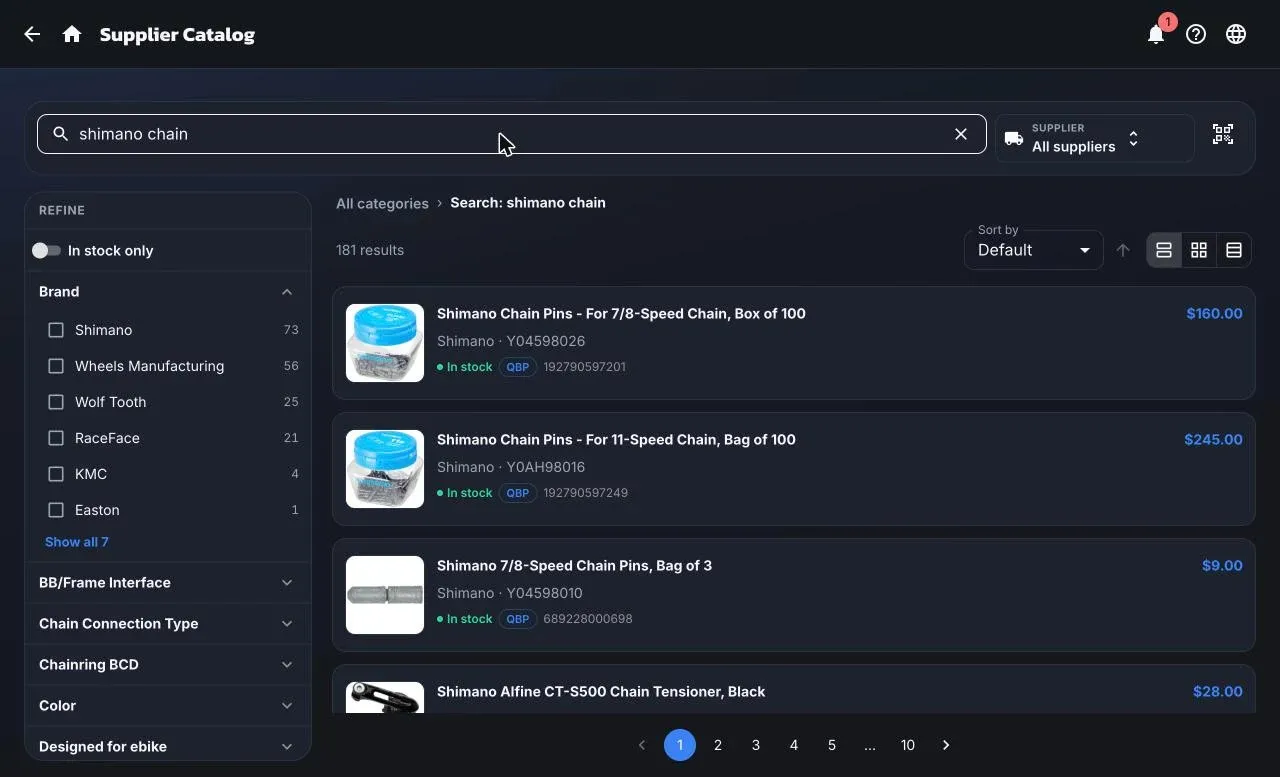
Searching
Section titled “Searching”- Type a name, manufacturer part number, or barcode, or use Scan barcode.
- Narrow to one supplier with the Supplier picker, or leave it on All suppliers.
- Shop by category to browse, then Refine with attribute filters and In stock only.
- Switch between card, tile, and table views. The table has columns for stock, product, brand, MPN, distributors, MSRP, and MAP.
The catalog is empty until your first supplier has synced, which happens on a nightly cycle after you connect. See Suppliers.
A product
Section titled “A product”Open a result to see:
- Pricing: MSRP and MAP.
- Suppliers: one row per distributor that carries it, with their SKU, Your cost, stock, margin against MSRP, and a Drop-ship chip where offered. Compare the rows; ShopTech doesn’t pick a supplier for you.
- Availability: quantity per warehouse.
- Details: part number, barcode, category, how it’s sold, weight and dimensions, description, and highlights.
Print → Customer product detail prints a plain 80 mm sheet with the name, part number, MSRP, and description, without cost or supplier information, to hand to a customer.
Cost and margin are shown only to the Admin and Purchasing roles.
Needs a product
Section titled “Needs a product”When someone at the counter creates a special order or clipboard note with only a description, it appears under the Needs a product badge. Pick the request, search for the right part, and choose Use this to match it.