
Print client
The ShopTech Print Client is a small app for macOS and Windows. It runs on any computer on the shop’s network and prints to the printers attached to it, so iPads and phones can print silently without a dialog. One client can serve every device in the shop.
Install and pair
Section titled “Install and pair”Pairing needs the Admin role.
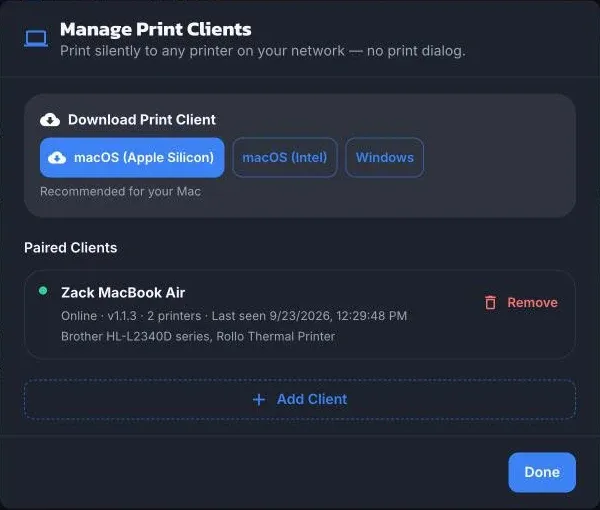
- In ShopTech go to Settings → Printing → Manage Print Clients and choose Download Print Client. Pick macOS (Apple Silicon), macOS (Intel), or Windows; the right one for the computer you’re on is marked recommended.
- Install and open it on the computer that has the printers.
- Back in ShopTech, choose Add Client. A six-letter code appears. It’s good for five minutes.
- In the print client, enter the code under Pairing Code and give the computer a name like “Front Desk”, then Connect.
The client’s status bar shows Connected to ShopTech, and the computer appears under Paired Clients in ShopTech with a green Online dot.
Printers on the client
Section titled “Printers on the client”The client lists every printer the computer knows about. Untick any you don’t want ShopTech to use. Give each one a paper size so it’s labelled correctly in ShopTech: 80 mm or 50 mm receipt, letter, 4 × 6 inch label, or 2 × 1 inch label. The document’s actual size is fixed by its type; the label just helps you pick.
Network Epson printers: an Epson TM receipt printer on the network can be added directly by name and IP address, with Test and Diagnose to check it. The computer must be on the same network.
Closing the client’s window hides it in the menu bar or tray; it keeps printing. Quit from the tray menu.
Choose printers on each device
Section titled “Choose printers on each device”On every iPad or computer that will print, go to Settings → Printing, set Print Method to ShopTech Print Client, and pick a printer for each kind:
- Receipt printer for item tags, drop-off receipts, hold tags, and customer product details.
- Label printer for product labels.
- Document printer for purchase orders.
The list shows every printer across every paired computer, with the computer’s name and paper size. Any kind can be left as None — pick at print time; ShopTech will ask the first time it needs one. Choose Save.
Recommended hardware: an 80 mm thermal receipt printer, and a 2 × 1 inch label printer such as a Brother QL, Zebra ZD420, or Dymo.
Unpair
Section titled “Unpair”Remove under Paired Clients unpairs a computer; Disconnect This Computer in the client does the same from that side. Neither affects other clients.