
Import products to Shopify
A catalog product has to be in your Shopify store before it can be sold, put on a work order, or ordered on a purchase order. Importing creates the Shopify product with the catalog’s title, description, images, barcode, and part number, and keeps it linked to the catalog for cost and stock.
Import one product
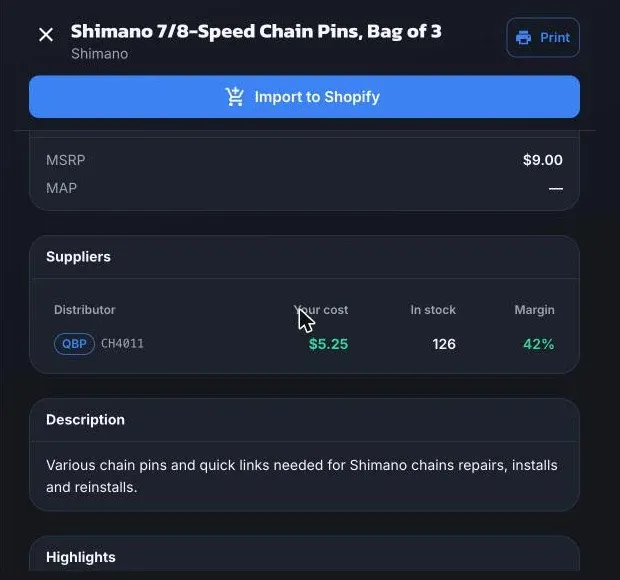
Section titled “Import one product”- Open the product in the Supplier Catalog.
- Choose Import to Shopify.
- If the catalog has no MSRP or MAP, ShopTech asks you to Set the retail price. Otherwise the price is taken from the catalog. To be asked every time, turn on Ask for a price on every import in Settings → General → Catalog pricing.
Importing needs the Admin or Purchasing role. Discontinued products can’t be imported.
After importing
Section titled “After importing”The product’s detail changes to offer:
- View in Products.
- Add to Clipboard to order it. See The clipboard.
- Special order for a customer. See Create a special order.
- Refresh from catalog to overwrite the title, description, and images from the supplier. The price is never changed.
Once imported, the product’s page under Inventory → Products shows the supplier’s SKU, dealer prices, and warehouse availability under Supplier details.
Other places that import
Section titled “Other places that import”You don’t have to come here to import:
- Purchase order → Add line → Supplier catalog imports the product and adds it to the order in one step.
- Work order → Products → Search supplier catalog imports it and flags the line as a special order.
- Quick Add and Create product in Inventory match a scanned barcode against the catalog and fill in the details.
- A Stocktake can import a scanned product that isn’t in Shopify yet.
Link products you already have
Section titled “Link products you already have”If your Shopify store already had products before you connected a supplier, Settings → General → Catalog → Run backfill matches them to the catalog by barcode and part number so they get cost and stock too.