
Suppliers
Purchasing → Suppliers lists everyone you buy from. Connected distributors feed the Supplier catalog and, for some, take orders electronically. Custom suppliers are just a name and contact details for your purchase orders.
Connecting and editing suppliers needs the Purchasing or Admin role.
Connected distributors
Section titled “Connected distributors”| Supplier | Catalog and cost | Live stock | Ordering from ShopTech |
|---|---|---|---|
| QBP | Yes | Yes, per warehouse | Yes, electronic. Drop-ship supported. |
| JBI (J&B Importers) | Yes | Yes | Yes, electronic, with tracking. Drop-ship and prepaid labels supported. |
| BTI | Yes | Yes | Cart file. ShopTech exports a CSV you upload to BTI’s cart. |
| Trek | Catalog only, no dealer cost | Yes | No. Connected automatically. |
ShopTech can also turn on catalog data for a number of brands (Shimano, Bell and Giro, Pearl Izumi, Kona, and others) that don’t take orders. Ask support if you’d like one enabled.
Connect a distributor
Section titled “Connect a distributor”- Choose Add → Connect distributor, or Connect under Available distributors.
- The Catalog tab takes the credentials for pricing and stock. The Orders tab, where offered, takes the credentials for placing orders. Save each separately.
- Catalog credentials are checked and the first sync runs on the next cycle. Search results for the new supplier are empty until then. Ordering credentials are tested when you save.
What you need:
- QBP: your QBP API key for the catalog. For ordering, your QBP account number and EFTP password, which QBP’s sales and service operations team issues separately from the API key.
- JBI: your JBI account number and FTP password for the catalog. For ordering, the order upload username, FTP password, and JBI API token. New JBI accounts start in manual checkout, so your first orders wait for review on jbi.bike.
- BTI: your bti-usa.com username and password.
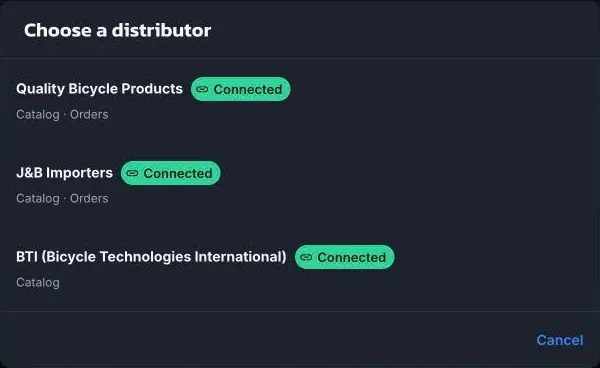
After connecting, the catalog syncs nightly and pricing and stock refresh hourly (BTI pricing daily).
Set up electronic ordering
Section titled “Set up electronic ordering”For QBP and JBI, open the supplier and choose Set up electronic ordering. The steps are your account details, which supplier ship-to address each of your locations uses, default shipping and payment terms, how the supplier should handle an order and any problem lines, warehouse preferences (JBI), and drop-ship (QBP). The supplier shows Ready when it’s done.
Custom suppliers
Section titled “Custom suppliers”Add → Add custom supplier with a name, contact, account number, website, and notes. Purchase orders for a custom supplier are printed or exported and sent by you; ShopTech tracks the reference and shipments you record.
If you later connect a distributor with a similar name, ShopTech offers to link the custom supplier to it so your history carries over.
Managing suppliers
Section titled “Managing suppliers”A supplier’s page shows contact details, its catalog link and what it supports, and recent purchase orders. The menu offers Edit details, Disconnect from catalog, and Deactivate. Show inactive suppliers on the list brings them back.