
Work on a job
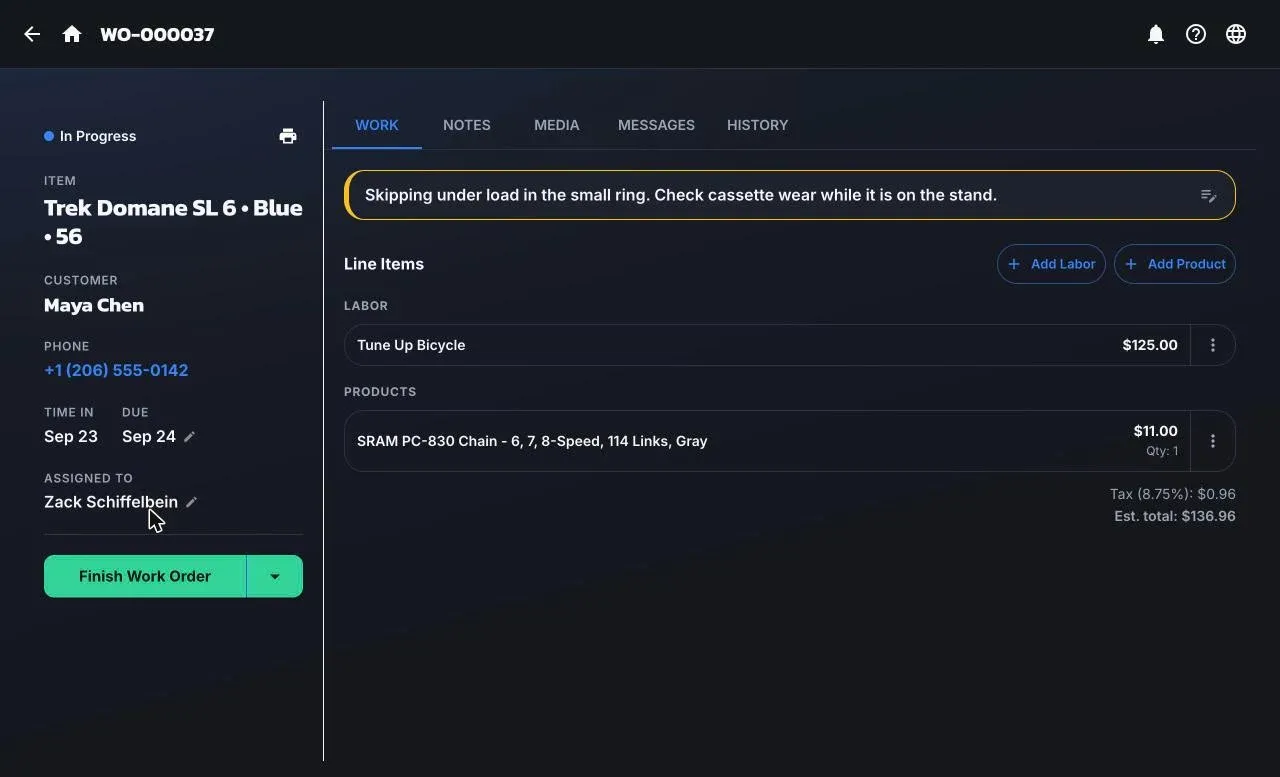
Open a work order from Open Work Orders or from a customer’s history. The page has one main action button that changes with the status, and tabs for Work, Notes, Media, Messages, and History.
Start, wait, and move
Section titled “Start, wait, and move”| Job is | Main button | Also available |
|---|---|---|
| Open | Start Work Order: sets In Progress and assigns you | Mark as Waiting, Void |
| In Progress | Finish Work Order | Mark as Waiting, Move to Open (optionally un-assign), Void |
| Awaiting Products or Approval | Start Work Order | Move to Open, change the waiting reason, Void |
| Completed | Mark as Picked Up | Reopen, Void |
| Voided | Unvoid Work Order |
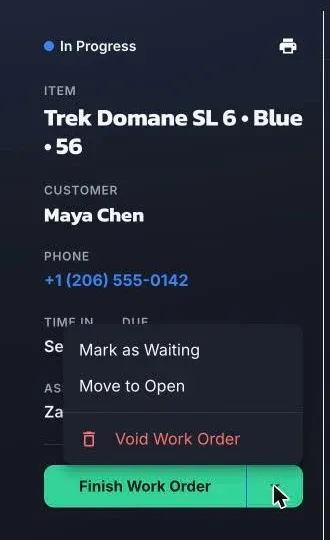
Mark as Waiting asks why: Awaiting products or Awaiting customer approval. The reason shows on the list and in the customer’s portal. When the part lands or the customer answers, Start Work Order picks it back up and ShopTech asks whether to Update Due Date.
The Work tab
Section titled “The Work tab”- Customer, Phone, and Time In are set at check-in. The work order keeps its own copy of the phone number, so texts for this job go to the number the customer gave at drop-off.
- Due is the ready date. Tap it to change it.
- Assigned To is set when someone starts the job. It can be changed while the job is In Progress.
- Line Items are grouped as Labor and Products with the estimated total. Add Labor and Add Product work the same way as when creating the order. Each line’s menu offers Edit, Delete, and, for placeholders, Resolve product.
- Once any part of the job has been paid, the paid lines show a Paid chip and the header shows what’s left to pay.
Lines are locked once the job is completed, voided, or picked up. Reopen a completed job to change them.
Notes, Media, History
Section titled “Notes, Media, History”- Notes are internal. The customer never sees them. The job note written at check-in prints on the drop-off receipt; the Notes tab is for everything after.
- Media holds photos and videos of the job. Use Photo or Video to capture on the device, Library to upload, and Download all to save them.
- History logs every change: status, lines, due date, assignments, messages, and payments.
Messages
Section titled “Messages”The Messages tab is a two-way thread with the customer. See Messaging and the customer portal.
Special orders on a job
Section titled “Special orders on a job”A line marked Special Order creates a special order attached to this work order and puts it on the purchasing Clipboard. When it arrives, the buyer uses Place with service item and the job returns to Open. Track it from the Waiting section of the open list, which shows where each part is.
Voiding
Section titled “Voiding”Void Work Order cancels the job and any special orders attached to it. It can be undone with Unvoid, but the special orders are not restored. A job with a deposit held can’t be voided until the deposit is refunded in Shopify POS.