
Find work orders
Open Work Orders
Section titled “Open Work Orders”The open list is a seven-day window. Use the arrows to move between weeks. Jobs are grouped by their ready date:
- Past Due shows first whenever there is anything in it.
- Waiting collects jobs that are Awaiting Products or Awaiting Approval, collapsed by default. Each row shows where the part is (“on order”, “with the bike”) and the last note. The header counts how many of them are past due.
- Today, Tomorrow, and then each remaining day of the week. Holidays are named.
Each card shows the work order number, status, the service item, the customer, and who it’s assigned to. Overdue jobs are flagged with the date they were due.
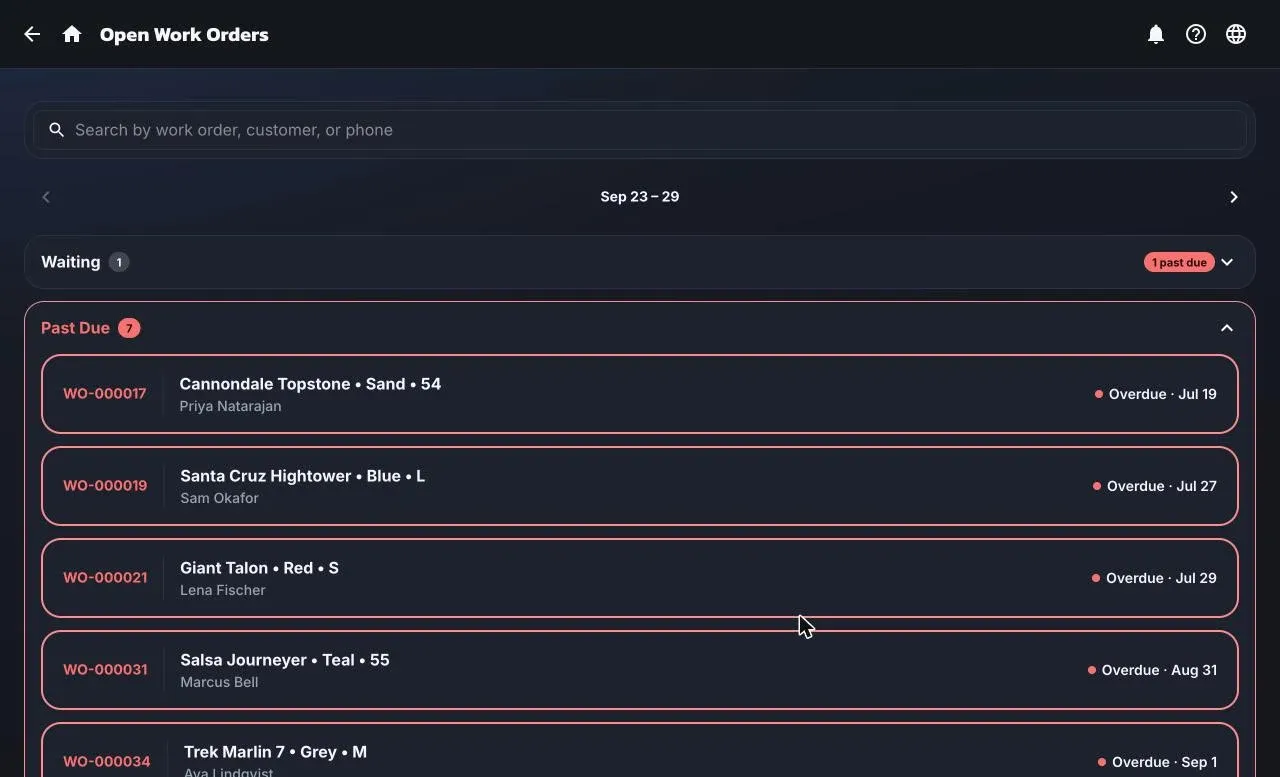
Search by work order number, customer name, or phone from the box at the top. Search looks across every week.
Complete Work Orders
Section titled “Complete Work Orders”Three sections: Completed (finished, waiting for pickup, longest waiting first), Picked Up, and Voided. Completed rows show how long the job has waited and whether the customer has been contacted, with a Contact button for a reminder text or to log a call.
From a customer
Section titled “From a customer”A customer’s record lists their work order history at your location. See Customers.
Locations
Section titled “Locations”Lists and counts are for the location this device is operating from. Switch location in Settings → Shops to see another shop’s jobs.