
Releasing orders
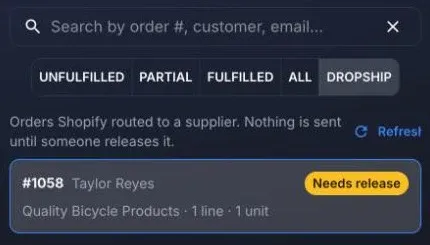
When Shopify routes an online order (or part of one) to a supplier’s location, ShopTech picks it up within a minute and asks Shopify to hand it over. From then on it is a dropship request: one per order per supplier, with its own status, timeline and actions.
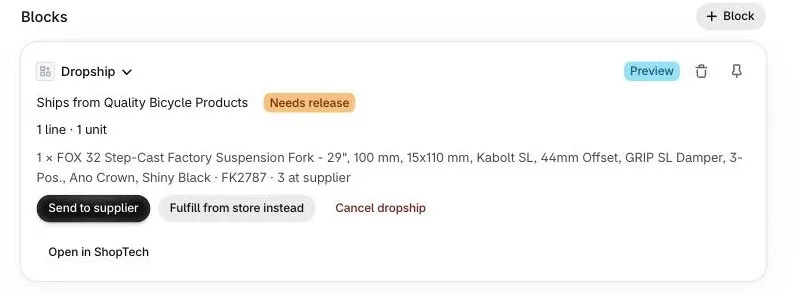
Requests live in Sales → Web Orders → Dropship and on the order’s detail page under Web Orders. The same card, with the same actions, is on the order page in Shopify admin, and Send to supplier is in the order’s More actions menu there. Everyone gets a New dropship order alert; the first person to claim it clears it for the others.
Statuses
Section titled “Statuses”| Status | Meaning |
|---|---|
| Needs release | Waiting for a person to send it. If there’s a hold, the reason is on the card. |
| Blocked | Can’t be sent as it stands. ShopTech declined it in Shopify with the reason, so the order is back with your store to fulfill. |
| Sending | Accepted in Shopify; the purchase order is being created and sent. |
| With supplier | Sent. The supplier has acknowledged it or is processing it. |
| Shipped | The supplier shipped. The Shopify order is fulfilled with tracking and the customer has been emailed. |
| Fulfilled | Every line is fulfilled in Shopify. |
| Cancelled | Withdrawn before the supplier shipped. |
| Failed | The supplier rejected it, or the send failed. The reason is on the card. |
Holds and what to do about them
Section titled “Holds and what to do about them”A hold keeps a request at Needs release so a person looks at it. The card names the hold and the fix.
| Hold | Why | Fix |
|---|---|---|
| Unpaid | The order isn’t paid yet. | Nothing; ShopTech re-checks when payment lands. |
| Expedited shipping | The customer paid for a faster rate than the supplier’s default. | Send it anyway and absorb the difference, or ship it yourself. |
| Short stock | No single supplier warehouse has the whole quantity. | Send what the supplier has splits the order: the supplier ships what one warehouse holds and the rest moves back to your store to fulfill (the customer may get two shipments). Or send it whole, or fulfill from store. |
| High risk | Shopify’s fraud analysis rated the order high. | Review in Shopify. Send, cancel, or fulfill from store. |
| Missing contact | The supplier requires a phone number or email the order lacks. | Add it to the Shopify order, then Refresh. |
Two problems can’t be fixed by sending, so ShopTech blocks the request and hands the order back to your store in Shopify:
- Address: a PO box, or a destination outside the supplier’s delivery area (QBP ships to the contiguous US only).
- Ineligible or unmatched line: a line the supplier won’t dropship or that isn’t linked to its catalog.
Actions
Section titled “Actions”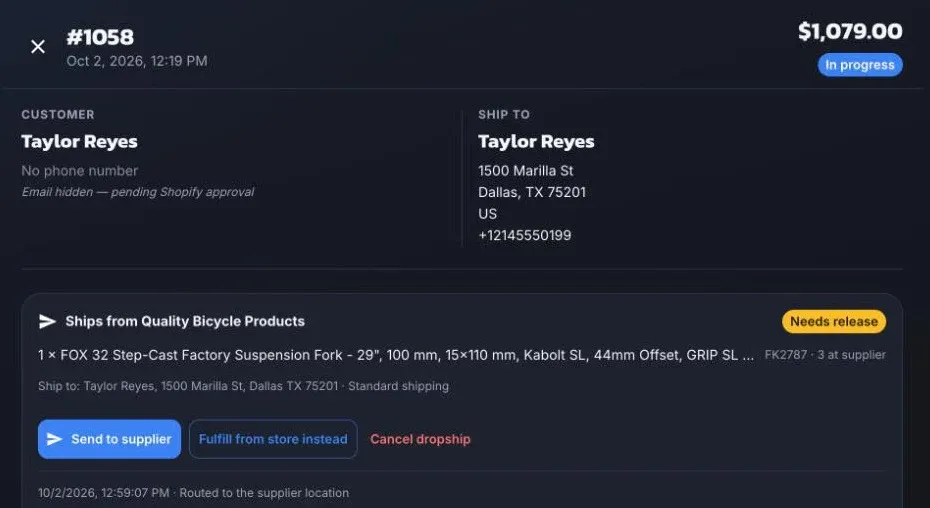
- Send to supplier. Creates a purchase order addressed to the customer and sends it the same way a stock order is sent. The purchase order is linked from the card and shows in Purchasing → Purchase orders; it has no receiving step, because nothing arrives at the shop.
- Fulfill from store instead. Hands the lines back to your own location in Shopify so you ship them. Available until the supplier has shipped.
- Add tracking. For suppliers that don’t report shipments electronically (QBP today), paste the carrier and tracking number from the supplier’s confirmation. ShopTech fulfills the order in Shopify and emails the customer. J&B’s tracking arrives on its own.
- Cancel. Withdraws the request before it’s sent, or after a failure, and releases the lines in Shopify.
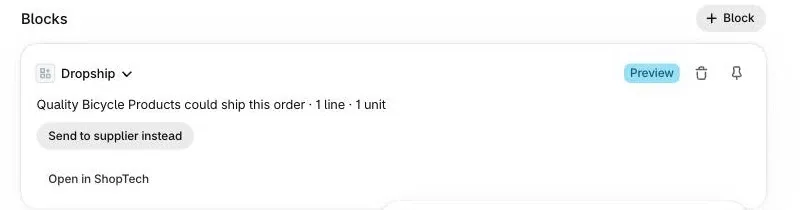
Dropship instead appears on an order assigned to your store when a supplier could ship every line of it. It moves the shipment to the supplier’s location and puts it in the queue as Needs release. On the Shopify order page the same offer reads could ship this order with a Send to supplier instead button.
After sending
Section titled “After sending”ShopTech mirrors the purchase order every 15 minutes. A supplier acknowledgement moves the request to With supplier; a shipment fulfills the Shopify order with tracking and emails the customer; a rejection moves it to Failed with the supplier’s reason, and the person who sent it is notified. If nothing has shipped five days after sending, the sender is nudged to check with the supplier.
If the customer or a staff member cancels the Shopify order, ShopTech accepts the cancellation when the request hasn’t been sent, and asks the supplier to cancel when it has. A cancellation the supplier won’t accept is declined in Shopify with the supplier’s status as the reason.
Automatic release
Section titled “Automatic release”Under Apps → ShopTech → Dropship in Shopify admin, the release mode can be switched from A staff member releases each order to Send automatically. In automatic mode, a request with no hold is sent 15 minutes after payment; the wait lets customer cancellations and Shopify’s fraud analysis land first. Anything with a hold still waits for a person. The timeline records that ShopTech, not a person, released it.
Shopify Flow
Section titled “Shopify Flow”ShopTech adds three triggers and one action to Shopify Flow, so a shop can automate around dropship without leaving Shopify:
| Trigger | Fires when | Carries |
|---|---|---|
| Dropship request held | A request is waiting for a person, with the reason | The order, the supplier, the hold reason and detail, and the request id |
| Dropship request failed | The supplier rejected the order or the send failed | The order, the supplier, the reason and detail |
| Dropship order shipped | The supplier shipped and the order was fulfilled | The order, the supplier, the tracking number and carrier |
The Release dropship request action sends a waiting request to the supplier, exactly as Send to supplier does. Pair it with the held trigger to release automatically under conditions of your own, for example only for orders under a certain value, or post a message to a channel when a supplier rejects an order.