
Set up dropship
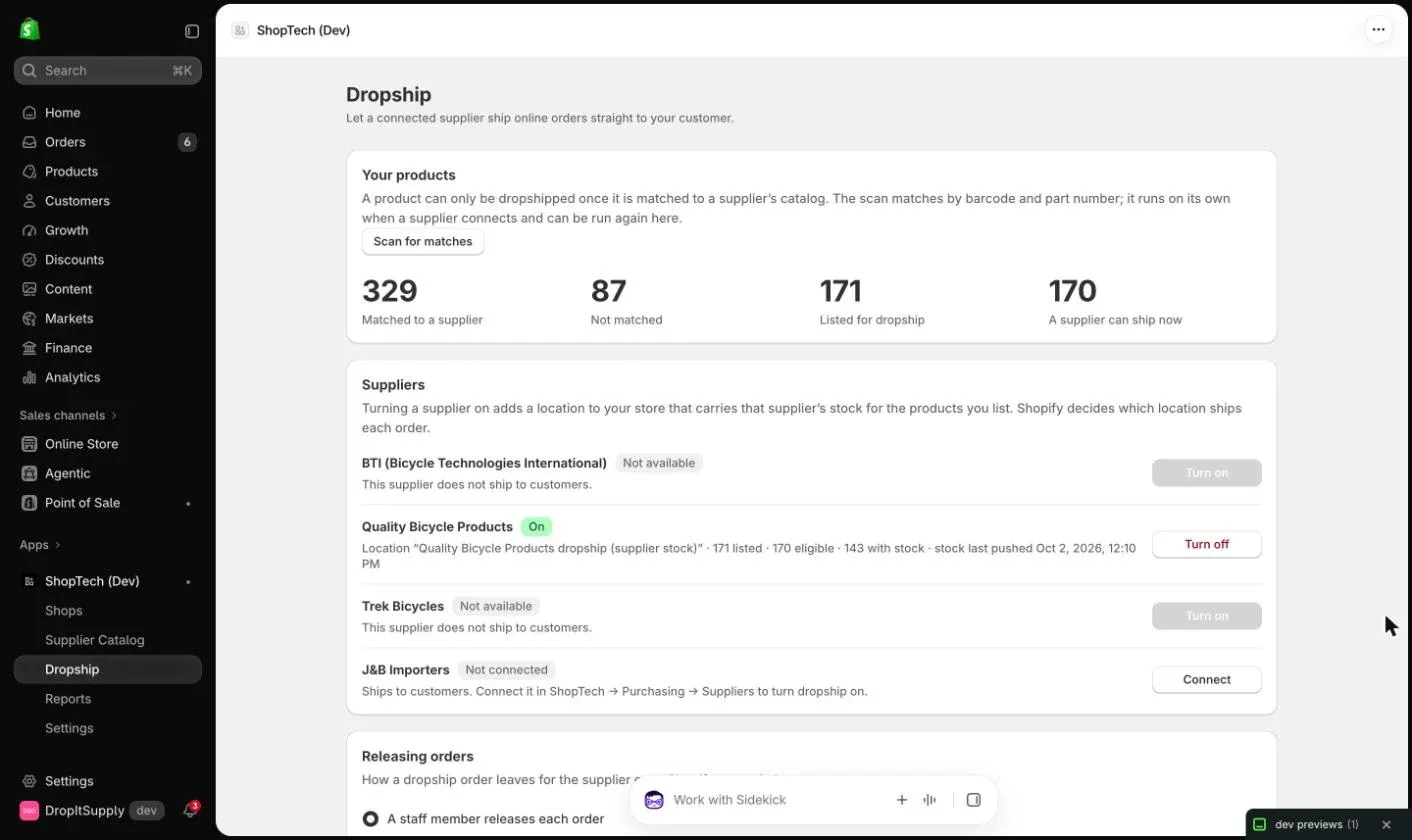
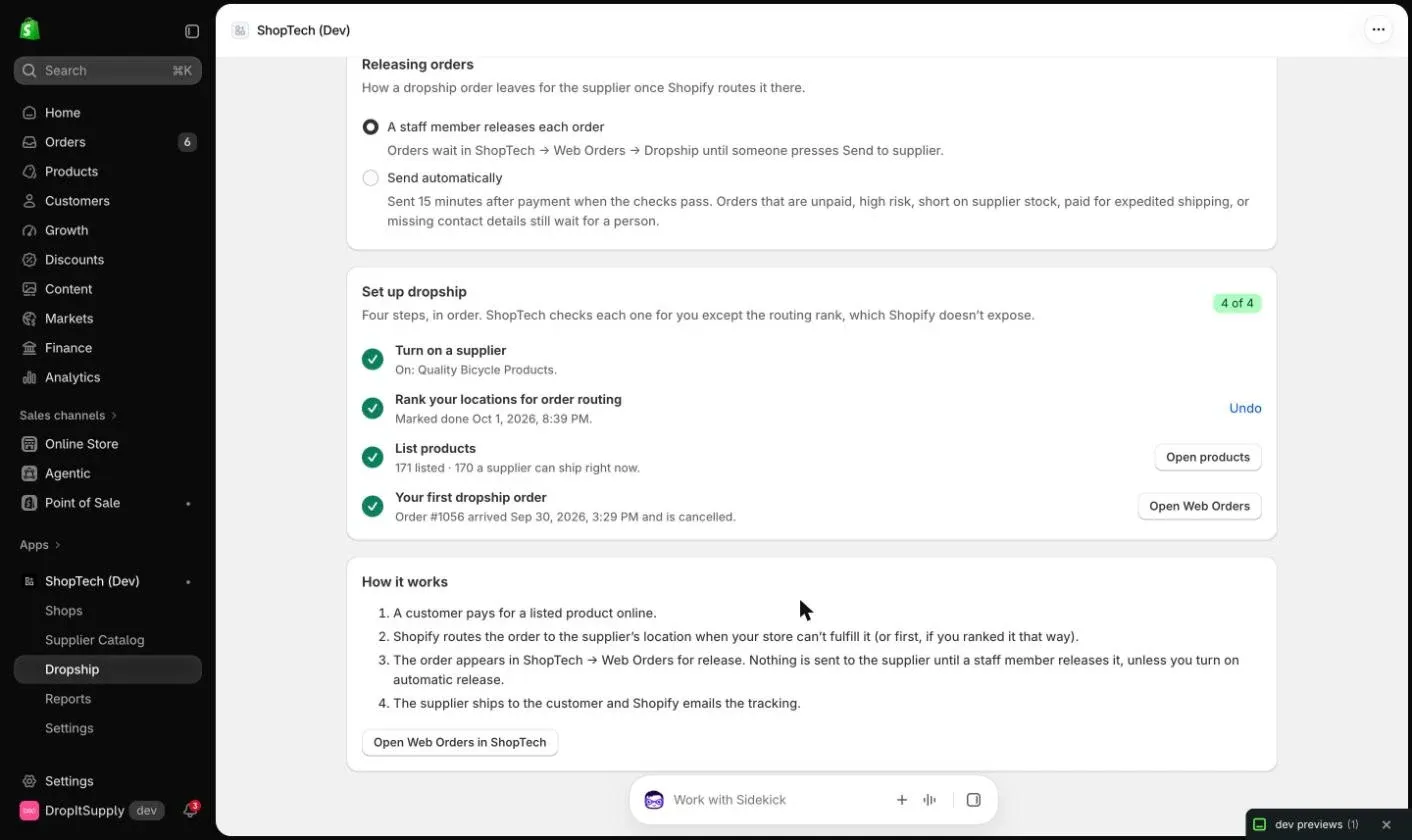
Setup happens in Shopify admin, under Apps → ShopTech → Dropship, because every step changes how Shopify stocks and routes online orders. The page shows a four-step checklist and ticks each step off as ShopTech sees it done, except the routing rank, which Shopify doesn’t expose and you confirm yourself.
Before you start
Section titled “Before you start”The supplier has to be connected for ordering, and your account has to be enrolled in its dropship program:
- QBP calls it Retail Fulfillment Services. Apply through your QBP rep. Once approved, enter your RFS login in ShopTech under Purchasing → Suppliers → QBP → Set up electronic ordering → Drop-ship.
- J&B Importers turns dropship on for the account. Ask your rep if it isn’t already.
Until this is done the supplier’s row says Needs setup with a Set up button that takes you to the right place in ShopTech. See Suppliers.
1. Turn on a supplier
Section titled “1. Turn on a supplier”Press Turn on beside the supplier. ShopTech adds a location to your store named “Supplier dropship (supplier stock)”. It’s a location ShopTech manages: it doesn’t count toward your Shopify plan’s location limit, it doesn’t appear as a shop in ShopTech, and only ShopTech changes its stock.
Turn off removes the location and zeroes anything listed at it. Products keep their Dropship flag, so turning the supplier back on relists them.
Your existing shipping rates apply to the supplier location on their own. It doesn’t appear in your shipping profiles and doesn’t need to; the customer pays whatever your rates say for their address.
2. Rank your locations for order routing
Section titled “2. Rank your locations for order routing”Under Settings → Shipping and delivery → Order routing, choose Ranked locations and decide the order:
- Your store on top: you ship from your own stock first; the supplier ships only what you don’t have.
- The supplier on top: the supplier ships whenever it has stock, and your store ships the rest.
Shopify applies this at checkout, so a mixed order can split into one shipment from you and one from the supplier. Each shipment from the supplier is one supplier fee. Pickup orders never route to a supplier, because pickup is only offered at your own locations.
Shopify has no way for apps to read this setting, so press Mark as done on the checklist once you’ve set it.
3. List products
Section titled “3. List products”Tick Dropship on a product page in Shopify, select several products in the products list and choose List for dropship, or use the switch on the product in ShopTech. Supplier stock shows at the supplier location within a minute. See Listing products.
4. The first order
Section titled “4. The first order”Place a small test order on your online store for a listed product your store has none of, or wait for a real one. It appears in Sales → Web Orders → Dropship and on the order page in Shopify admin, waiting for release. Nothing is sent to the supplier until someone presses Send to supplier. See Releasing orders.
Release mode
Section titled “Release mode”The same page holds the one ShopTech-side setting: whether a staff member releases each order (the default) or ShopTech sends it automatically 15 minutes after payment when every check passes. Orders that fail a check wait for a person in either mode. See Automatic release.